
Main window
When you log in to PLA 3.0, the main window opens, providing a set of basic items.
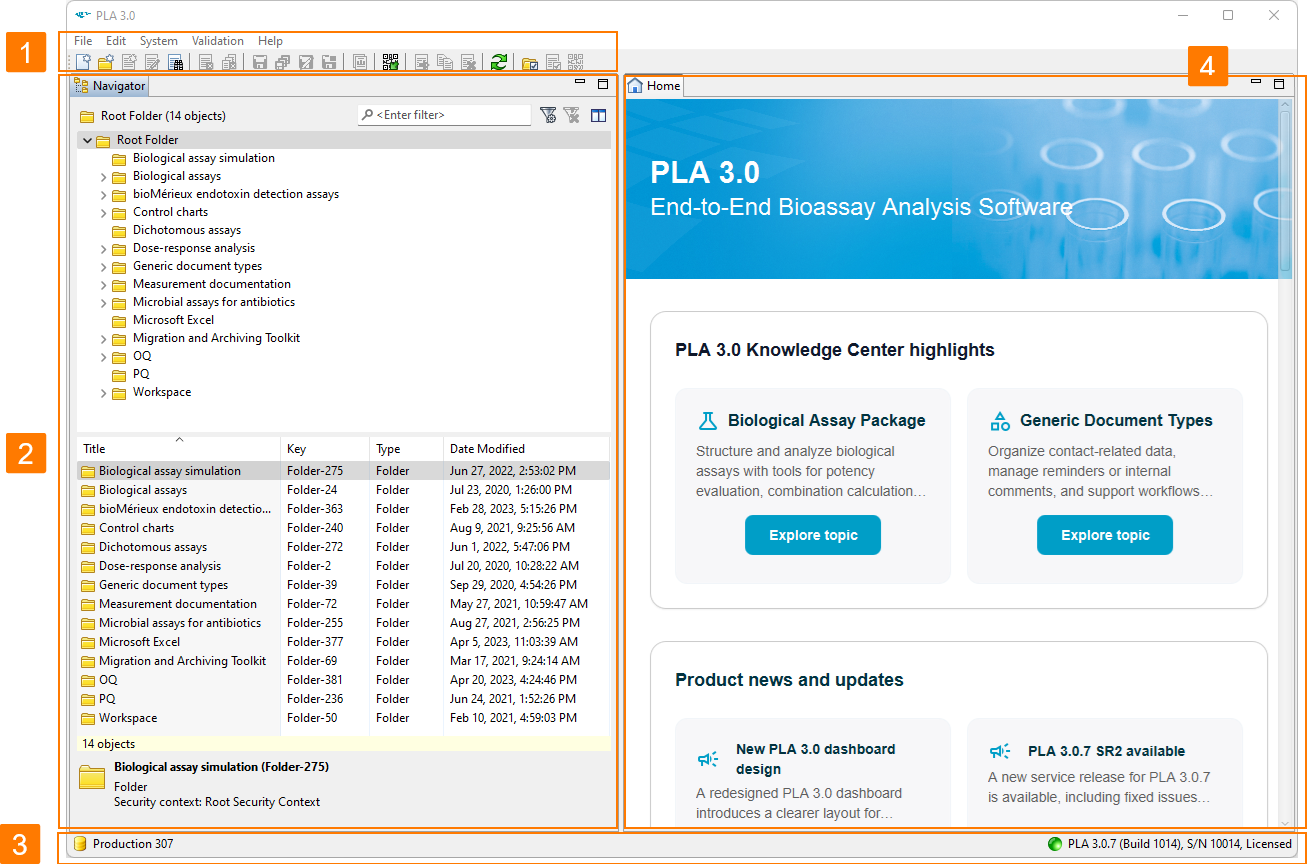
Items
| No. | Item | Description |
|---|---|---|
|
1 |
Menu bar and toolbar |
At the top of main window, the menu bar provides a series of sub-menus that you can use to access key features and functions of PLA 3.0, such as document and folder-related actions, database policies, and account management. Below the menu bar, the toolbar displays a set of icons that you can use for quick access to commonly used tools or functions, such as document and folder-related actions and report creation. |
|
2 |
Navigator |
The Navigator on the left side of the main window is your main tool for accessing and organizing your documents and folders. |
|
3 |
Status bar |
At the bottom of the main window, the status bar displays details on the database you are working on, the PLA 3.0 version, your license, and serial number. |
|
4 |
Home |
At the right side of the main window, the Home tab shows a dashboard that keeps you informed about product news, learning resources, and conference updates. You also find details about your current database, Support Contract, and information package. When you create a new or open an existing document, the document pane opens next to the Home tab. For details on this element, see the Document pane topic. |